IAM and EC2
Progress checklist
Overview
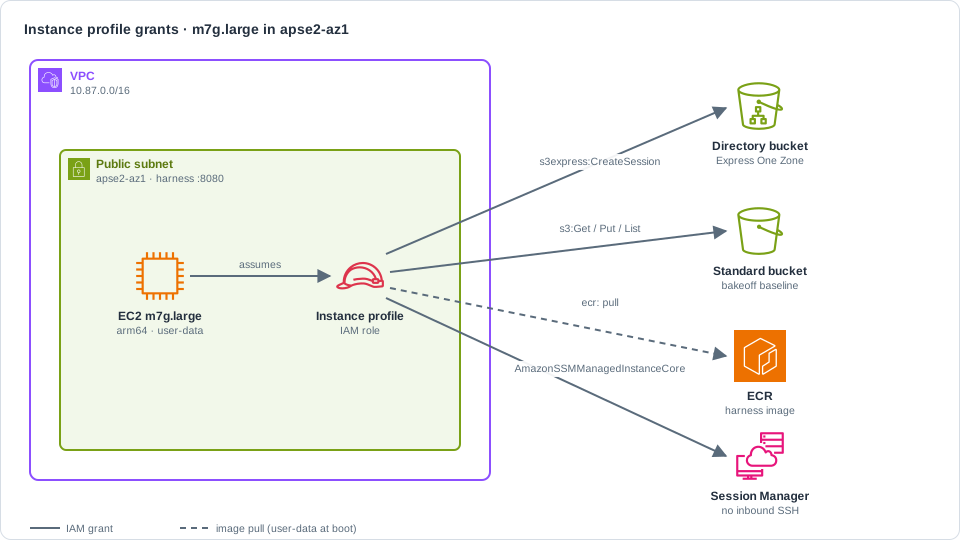
Section titled “Overview”An m7g.large (arm64 / Graviton) in the same AZ as the directory bucket, with an
instance profile scoped to four grants: s3express:CreateSession
s3express:CreateSession — session-based auth for zonal (object-level) operations on a directory bucket. The SDK or CLI obtains temporary credentials scoped to that bucket before GET/PUT/LIST.
on the directory bucket, S3 read/write on the Standard bucket, ECR pull so user-data can start the
harness
Docker container on the lab EC2 instance that continuously GETs the same keys from Express and Standard, exposes a dashboard on :8080, and reports p50/p90 latency ratios. image, and AmazonSSMManagedInstanceCore for Session Manager.
| Setting | Value |
|---|---|
| Role | s3x-hotlookup-${LAB_SUFFIX}-ec2 |
| Instance profile | s3x-hotlookup-${LAB_SUFFIX}-profile |
| Instance type | m7g.large |
| AMI | AL2023 arm64 (al2023-ami-kernel-default-arm64) |
Reuse LAB_SUFFIX, $VPC_ID, $SUBNET_ID, $AZ_NAME, and bucket names from earlier pages.
Requires a harness image from Build harness image. Run from the repo root.
export AWS_PROFILE=sandboxexport AWS_REGION=ap-southeast-2export S3X_LAB_ALLOW_AWS=1export LAB_SUFFIX=${LAB_SUFFIX:-$(date +%Y%m%d%H%M%S)}export ACCOUNT_ID=$(aws sts get-caller-identity --query Account --output text)export ROLE_NAME="s3x-hotlookup-${LAB_SUFFIX}-ec2"export PROFILE_NAME="s3x-hotlookup-${LAB_SUFFIX}-profile"export STD_BUCKET="s3x-hotlookup-${LAB_SUFFIX}-${ACCOUNT_ID}"export DIR_BUCKET="s3x-hotlookup-${LAB_SUFFIX}--apse2-az1--x-s3"export HARNESS_IMAGE="$(jq -r '.ecrUri + ":" + .imageTag' .image-state.json)"export HARNESS_PORT=8080mkdir -p .labecho "ROLE_NAME=${ROLE_NAME}"echo "HARNESS_IMAGE=${HARNESS_IMAGE}"Looks like (verified shape):
ROLE_NAME=s3x-hotlookup-EXAMPLE-ec2HARNESS_IMAGE=123456789012.dkr.ecr.ap-southeast-2.amazonaws.com/s3x-hotlookup-harness:c3cad1dIAM role and instance profile
Section titled “IAM role and instance profile”-
Write the EC2 trust policy.
Terminal window cat > .lab/ec2-trust.json <<'EOF'{"Version": "2012-10-17","Statement": [{"Effect": "Allow","Principal": { "Service": "ec2.amazonaws.com" },"Action": "sts:AssumeRole"}]}EOFLooks like: file
.lab/ec2-trust.jsoncreated (no AWS stdout). -
Write the permissions policy (CreateSession, Standard S3, ECR pull).
Terminal window cat > .lab/ec2-perms.json <<EOF{"Version": "2012-10-17","Statement": [{"Sid": "StandardBucket","Effect": "Allow","Action": ["s3:GetObject", "s3:PutObject", "s3:DeleteObject", "s3:ListBucket"],"Resource": ["arn:aws:s3:::${STD_BUCKET}","arn:aws:s3:::${STD_BUCKET}/*"]},{"Sid": "ExpressCreateSession","Effect": "Allow","Action": "s3express:CreateSession","Resource": "arn:aws:s3express:${AWS_REGION}:${ACCOUNT_ID}:bucket/${DIR_BUCKET}"},{"Sid": "EcrAuth","Effect": "Allow","Action": ["ecr:GetAuthorizationToken"],"Resource": "*"},{"Sid": "EcrPull","Effect": "Allow","Action": ["ecr:BatchCheckLayerAvailability","ecr:GetDownloadUrlForLayer","ecr:BatchGetImage"],"Resource": "arn:aws:ecr:${AWS_REGION}:${ACCOUNT_ID}:repository/s3x-hotlookup-harness"}]}EOFLooks like: file
.lab/ec2-perms.jsoncreated (no AWS stdout). -
Create the IAM role.
Terminal window aws iam create-role \--role-name "$ROLE_NAME" \--assume-role-policy-document file://.lab/ec2-trust.json \--tags Key=Project,Value=s3-express-hot-lookup-walkthrough \--query 'Role.Arn' --output textLooks like (verified shape):
arn:aws:iam::123456789012:role/s3x-hotlookup-EXAMPLE-ec2 -
Attach the inline S3 / Express / ECR policy.
Terminal window aws iam put-role-policy \--role-name "$ROLE_NAME" \--policy-name s3x-hotlookup-s3 \--policy-document file://.lab/ec2-perms.jsonLooks like: no stdout on success (exit 0).
-
Attach
AmazonSSMManagedInstanceCoreso Session Manager can reach the instance (AL2023 already includes SSM Agent).Terminal window aws iam attach-role-policy \--role-name "$ROLE_NAME" \--policy-arn arn:aws:iam::aws:policy/AmazonSSMManagedInstanceCoreLooks like: no stdout on success (exit 0).
-
Create the instance profile and add the role.
Terminal window aws iam create-instance-profile --instance-profile-name "$PROFILE_NAME" \--query 'InstanceProfile.Arn' --output textaws iam add-role-to-instance-profile \--instance-profile-name "$PROFILE_NAME" \--role-name "$ROLE_NAME"# IAM consistency delay before RunInstancessleep 8Looks like (verified shape for the profile ARN; add-role and sleep are silent):
arn:aws:iam::123456789012:instance-profile/s3x-hotlookup-EXAMPLE-profile
Security group and instance
Section titled “Security group and instance”-
Create a security group that allows the harness dashboard on TCP 8080.
Terminal window export SG_ID=$(aws ec2 create-security-group \--group-name "s3x-hotlookup-${LAB_SUFFIX}-sg" \--description "S3 Express hot lookup harness" \--vpc-id "$VPC_ID" \--tag-specifications "ResourceType=security-group,Tags=[{Key=Name,Value=s3x-hotlookup-${LAB_SUFFIX}},{Key=Project,Value=s3-express-hot-lookup-walkthrough}]" \--query 'GroupId' --output text)echo "$SG_ID"aws ec2 authorize-security-group-ingress \--group-id "$SG_ID" \--ip-permissions "IpProtocol=tcp,FromPort=8080,ToPort=8080,IpRanges=[{CidrIp=0.0.0.0/0,Description=harness-dash}]"Looks like (verified shape; authorize is silent on success):
sg-060230f0fd0150847 -
Resolve the latest AL2023 arm64 AMI.
Terminal window export AMI_ID=$(aws ssm get-parameters \--names /aws/service/ami-amazon-linux-latest/al2023-ami-kernel-default-arm64 \--query 'Parameters[0].Value' --output text)echo "$AMI_ID"Looks like (verified in this lab; AMI ID rotates over time):
ami-03f010f33dadbdb73 -
Write user-data that installs Docker, pulls the harness from ECR, and runs it.
Terminal window cat > .lab/user-data.sh <<EOF#!/bin/bashset -euo pipefailexec > >(tee /var/log/s3x-harness-bootstrap.log) 2>&1dnf -y updatednf -y install dockersystemctl enable --now dockerREGION='${AWS_REGION}'ACCOUNT_ID='${ACCOUNT_ID}'STANDARD_BUCKET='${STD_BUCKET}'EXPRESS_BUCKET='${DIR_BUCKET}'HARNESS_PORT='${HARNESS_PORT}'OBJECT_COUNT='64'OBJECT_PREFIX='hot/'HARNESS_IMAGE='${HARNESS_IMAGE}'ECR_REGISTRY="\${ACCOUNT_ID}.dkr.ecr.\${REGION}.amazonaws.com"aws ecr get-login-password --region "\$REGION" \\| docker login --username AWS --password-stdin "\$ECR_REGISTRY"docker pull "\$HARNESS_IMAGE"docker rm -f s3x-harness 2>/dev/null || truedocker run -d --name s3x-harness --restart unless-stopped \\-p "\${HARNESS_PORT}:8080" \\-e AWS_REGION="\$REGION" \\-e AWS_DEFAULT_REGION="\$REGION" \\-e EXPRESS_BUCKET="\$EXPRESS_BUCKET" \\-e STANDARD_BUCKET="\$STANDARD_BUCKET" \\-e OBJECT_COUNT="\$OBJECT_COUNT" \\-e OBJECT_PREFIX="\$OBJECT_PREFIX" \\"\$HARNESS_IMAGE"echo bootstrap-completeEOFLooks like: file
.lab/user-data.shcreated (no AWS stdout). -
Launch
m7g.largein the Express AZ subnet with the instance profile.Terminal window export INSTANCE_ID=$(aws ec2 run-instances \--image-id "$AMI_ID" \--instance-type m7g.large \--subnet-id "$SUBNET_ID" \--security-group-ids "$SG_ID" \--iam-instance-profile "Name=${PROFILE_NAME}" \--user-data file://.lab/user-data.sh \--metadata-options "HttpTokens=required,HttpPutResponseHopLimit=2,HttpEndpoint=enabled" \--tag-specifications "ResourceType=instance,Tags=[{Key=Name,Value=s3x-hotlookup-${LAB_SUFFIX}},{Key=Project,Value=s3-express-hot-lookup-walkthrough}]" \--query 'Instances[0].InstanceId' --output text)echo "$INSTANCE_ID"aws ec2 wait instance-running --instance-ids "$INSTANCE_ID"export PUBLIC_IP=$(aws ec2 describe-instances \--instance-ids "$INSTANCE_ID" \--query 'Reservations[0].Instances[0].PublicIpAddress' --output text)echo "Dashboard http://${PUBLIC_IP}:${HARNESS_PORT}/"Looks like (verified shape; public IP is yours):
i-07ab082c03100fc5aDashboard http://203.0.113.10:8080/
Prefer the wrapper
Section titled “Prefer the wrapper”demo.sh up creates IAM, the security group, seeds both buckets, and launches EC2 after the
image and VPC exist:
export S3X_LAB_ALLOW_AWS=1./scripts/demo.sh up./scripts/demo.sh statusVerify
Section titled “Verify”aws ec2 describe-instances --instance-ids "$INSTANCE_ID" \ --query 'Reservations[0].Instances[0].{State:State.Name,AZ:Placement.AvailabilityZone,Type:InstanceType,Arch:Architecture,Profile:IamInstanceProfile.Arn}'curl -s -o /dev/null -w '%{http_code}\n' --connect-timeout 5 \ "http://${PUBLIC_IP}:${HARNESS_PORT}/healthz"aws ssm get-connection-status --target "$INSTANCE_ID"Looks like (verified; AZ is account-local):
{ "State": "running", "AZ": "ap-southeast-2b", "Type": "m7g.large", "Arch": "arm64", "Profile": "arn:aws:iam::123456789012:instance-profile/s3x-hotlookup-EXAMPLE-profile"}200{ "Target": "i-EXAMPLE", "Status": "connected"}| Check | Expect |
|---|---|
| State | running |
| Type / arch | m7g.large / arm64 |
| AZ | Same mapping as apse2-az1 (ap-southeast-2b in this lab) |
| Profile | Lab instance profile attached |
/healthz | 200 after bootstrap (a few minutes) |
| Session Manager | connected (reboot once if you attached SSM after launch) |
Continue to Seed and run harness.